> For the complete documentation index, see [llms.txt](https://docs.robpod.cloud/llms.txt). Markdown versions of documentation pages are available by appending `.md` to page URLs; this page is available as [Markdown](https://docs.robpod.cloud/ai-coworker/coworker-projects.md).
# CoWorker Projects
You can use CoWorker Projects to create custom application scenarios, allowing you to design the specific experience users will have when interacting with the robot through an AI assistant.
CoWorker Projects consist of a set of robot actions. These actions can be defined as standard robot functions using the same programming environment as your robot (such as Polyscope, URScript, DRL, etc.). Robpod AI CoWorker automatically converts these functions into AI tools that can be used by AI assistant systems.
There are two types of actions:
*  **Default Actions**: common pre-defined actions such as *"Save robot position"*, *"Turn on the robot"*, *"Move to position"* that can be added to your project. You don't have to provide an implementation for those actions.
*  **Custom Actions:** actions designed and defined by you. For each custom action you can define  input parameters and a return message.
Actions are the building blocks of your AI application. The AI assistant, based on the interaction with the user, choose which action to execute and what are the best input parameter to use. The return message is used to compose the answer displayed to the the user.
{% hint style="info" %}
To use CoWorker Projects you need to [install Robpod Plugin](/ai-coworker/setup.md) on the robot controller.
{% endhint %}
#### Create a new CoWorker Project
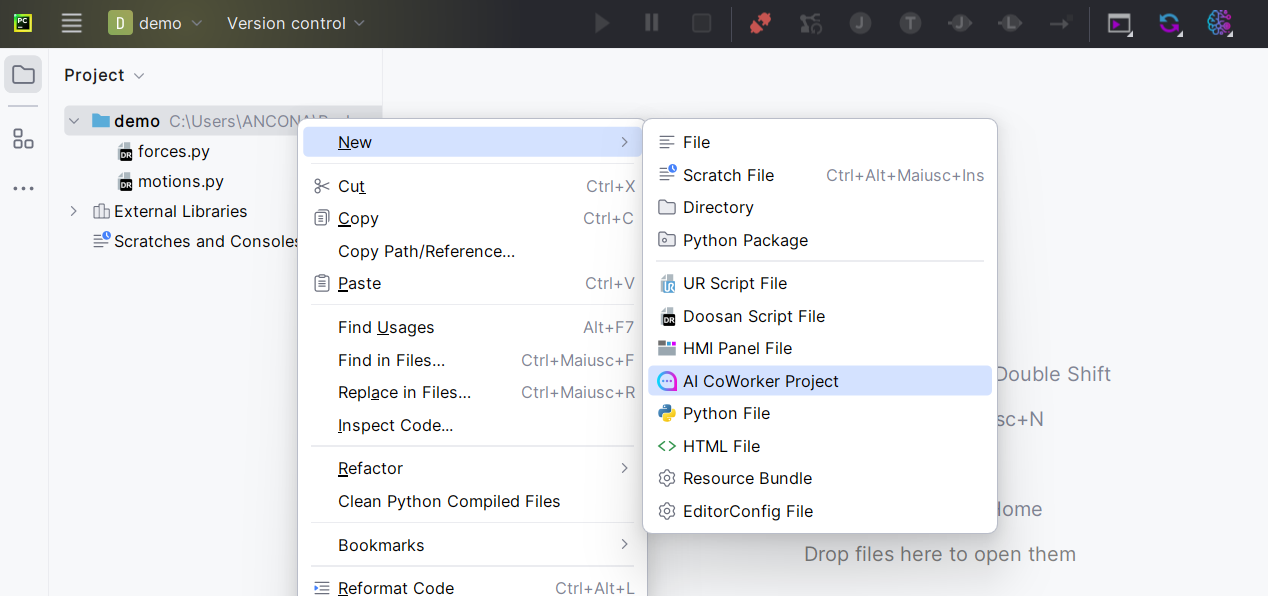
To create a new CoWorker Project, open [Robpod Studio](/get-started/introduction.md), then **Right click on the project folder -> New ->**  **AI CoWorker Project**. Choose a name for the project and then press ↵ **Enter**. The Project Editor will open.
#### CoWorker Project Editor
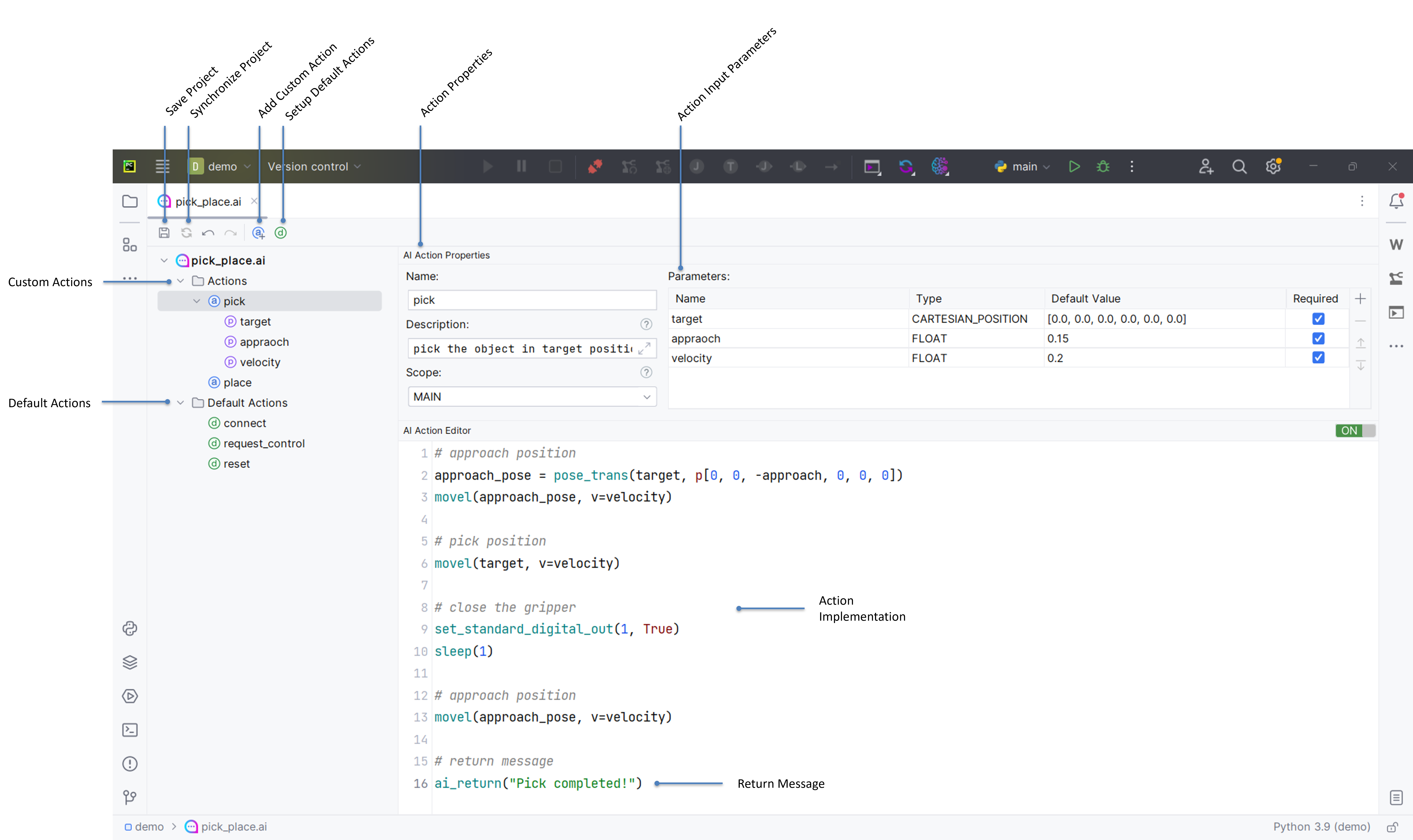
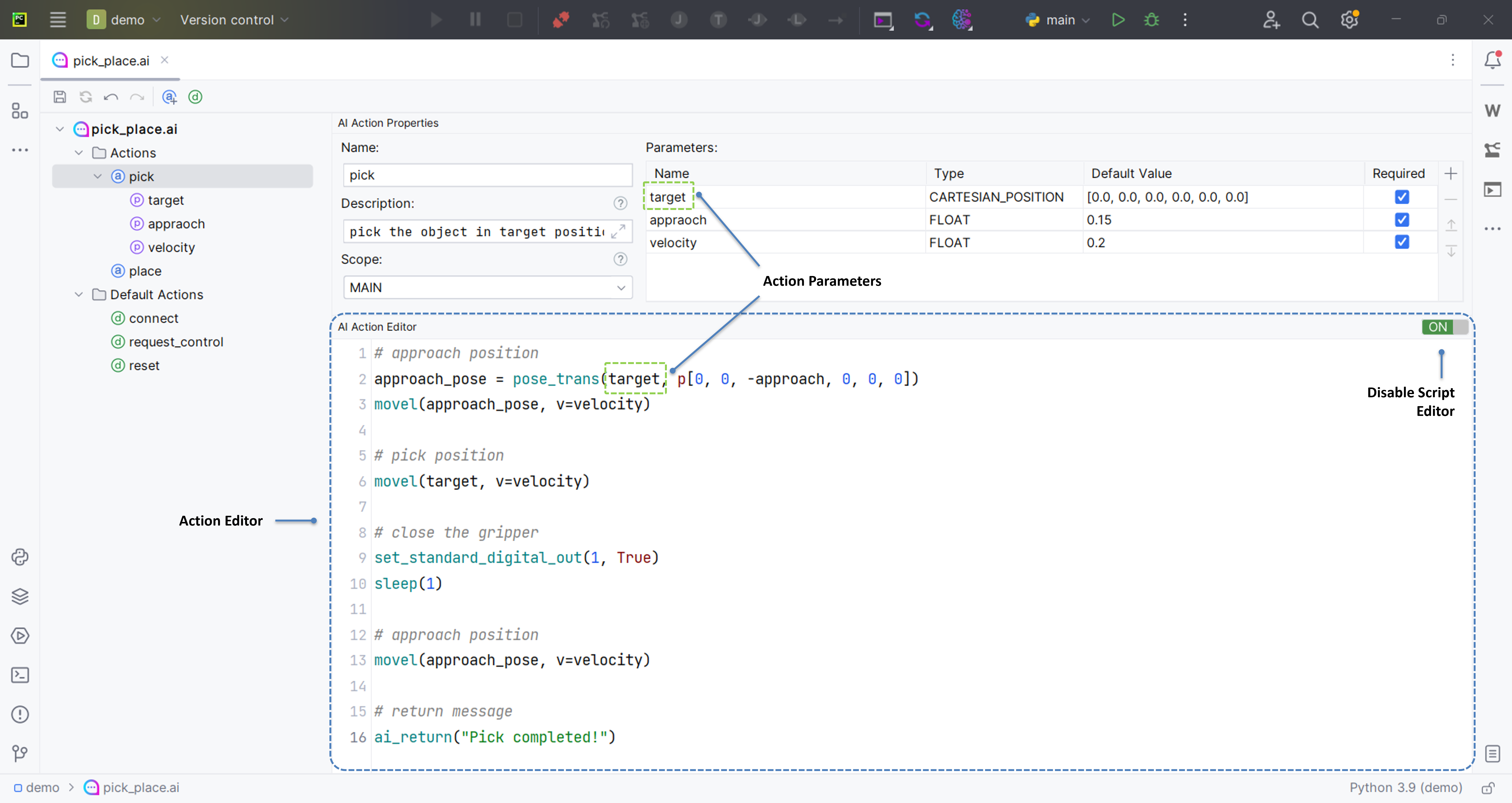
CoWorker Project editor is the graphical tool that you can use to setup the actions of your project.
#### Default Actions
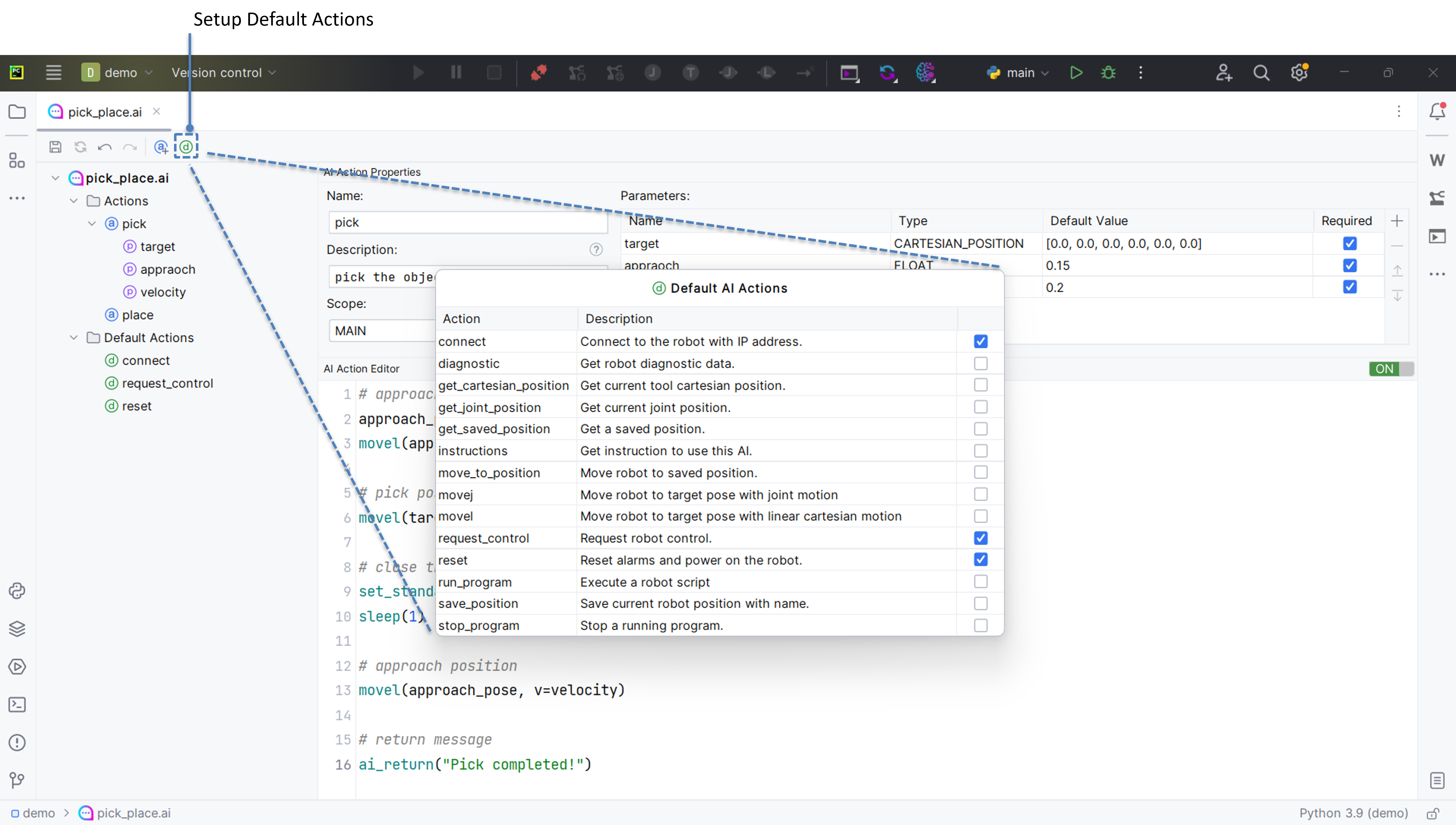
On the top bar, click on  **Default Actions** to setup which default action you want to include in your project. Default Actions are common pre-defined actions such as *"Save robot position"*, *"Turn on the robot"*, *"Move to position"* that can be added to your project. You don't have to provide an implementation for those actions.
{% hint style="info" %}
If an action is not included in your CoWorker Project, it can not be executed by AI assistants.
{% endhint %}
#### Custom Actions
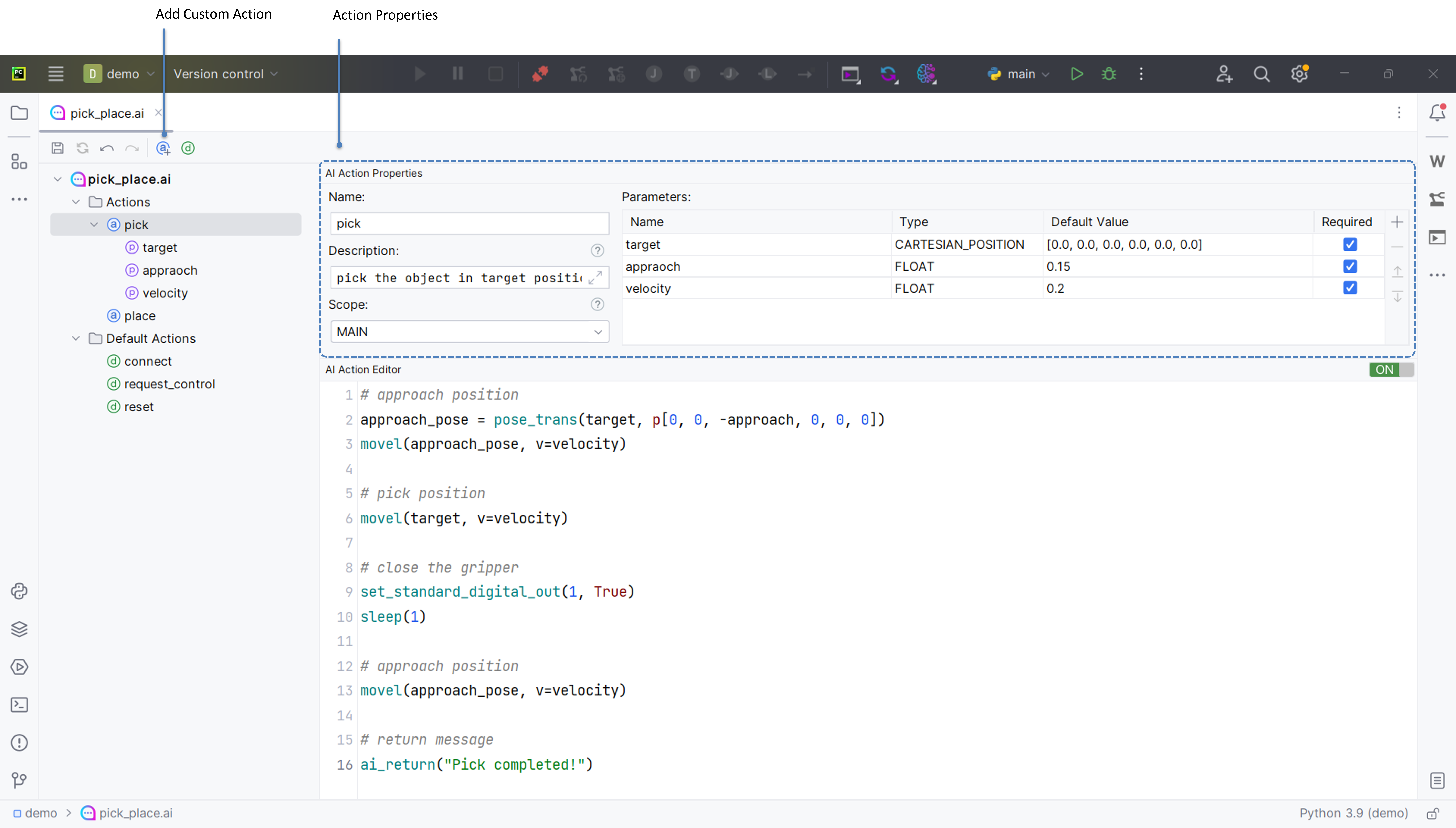
On the top bar, click on  **Add Action** to add a new custom action to the Project. Custom actions are completely designed and defined by you. For each custom action you can define  input parameters and a return message.
In the **Action Properties** section you must define:
**Action Name**: the name of the action. It's the name of the robot function to be executed.
**Action Description**: description of the robot function. Specify using natural language what the action does, what is the purpose of its input parameters and what the function [returns](/ai-coworker/return-message.md).
{% hint style="info" %}
The Action Description is the field that tells the AI Assistant how to use the action and what will be its behaviour and outcomes. So try to be very simple and clear with the description. Specify the meaning of each input parameters and units of measure where needed. Don't be too long and repetitive.
A good way to write the Action Description is to treat it like it was the documentation of the robot function.
i.e for a Pick action a good description could be:
*robot execute a pick action to grasp object in cartesian position target (units \[m, m, m, rad, rad, rad]) with specified velocity \[m/s] and appraoch \[m]*
{% endhint %}
**Action Scope:** used only when the project is executed in [Automatic Mode](/ai-coworker/automatic-mode.md). Actions with **Main** scope will be executed in the main thread one at time. Actions with **Background** scope can be executed in parallel using a background thread.
{% hint style="info" %}
For Doosan Robotics, if an anction use motion command, it must use the Main scope.
{% endhint %}
**Action Parameters**: input parameters used by the action. For each parameter specify its type and default value.
Parameters may be required or optional. For required parameters, the AI Assistant verifies whether the user has provided a value or whether it can be inferred from the conversation. If a required value is missing, the AI Assistant will prompt the user to supply it before executing the action. For optional parameters, the AI Assistant will use the default value when the user does not specify one.
{% hint style="info" %}
To specify a return value see the [Return Message](/ai-coworker/return-message.md) section.
{% endhint %}
#### Action Editor
The Action Editor is a script editor that allows you to define an action’s implementation using your robot’s native scripting language, such as URScript for Universal Robots or DRL for Doosan Robotics. Within the Action Editor, you can write the action just like a standard robot script, using the usual functions and operators of the scripting language. Action parameters can be accessed and used as regular script variables.
{% hint style="info" %}
If you don't want to use script code, you can also **Disable the Script Editor.** In this case you can provide the action implementation inside the robot teach pendant. i.e. using Polyscope for Universal Robots or Task Editor for Doosan Robotics.
When the Script Editor is disabled, the name of the action must match exactly with the name of the function defined inside the robot program. i.e. if the action name is **pick**, then the action implementation must be defined inside the robot program using a function named **pick()**.
Find out more about this feature in the [Automatic Mode](/ai-coworker/automatic-mode.md) section.
{% endhint %}
#### Save and Run the Project
Click on  Save to save the CoWorker Project.
{% columns %}
{% column width="41.66666666666667%" %}
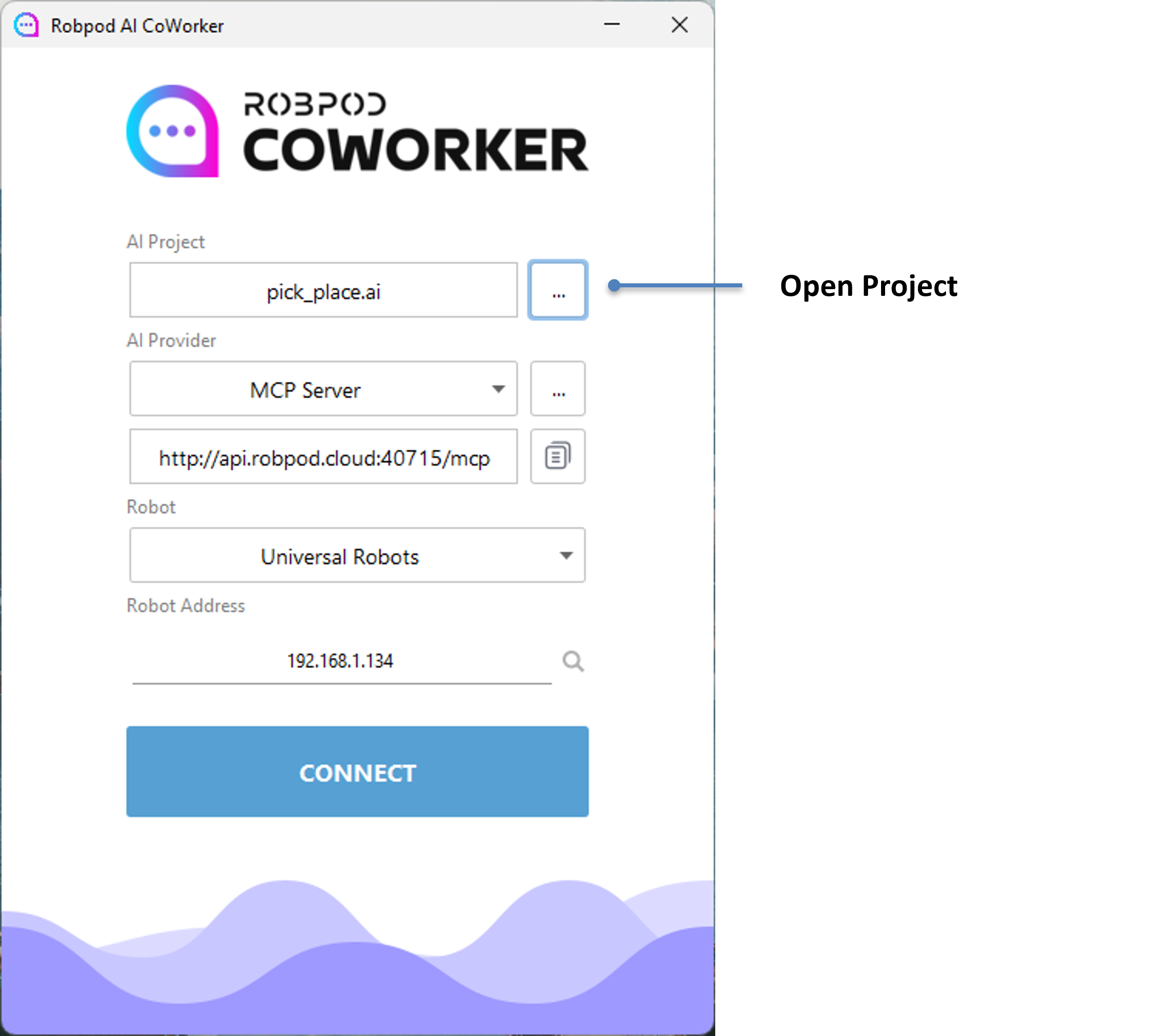
All the actions you have developed are stored in the CoWorker project file (file with the **.ai** extension). You can open this file in the [Robpod CoWorker App](/ai-coworker/quick-start.md) to run the project and start chatting with your preferred AI assistant.
{% endcolumn %}
{% column width="58.33333333333333%" %}
{% endcolumn %}
{% endcolumns %}
#### Synchronize the Project
When you are connected to a robot, click on  Synchronize to upload the CoWorker Project on the robot controller.
Synchronization is required when you want to run a CoWorker project within your existing robot program in [Automatic Mode](/ai-coworker/automatic-mode.md).